
When you are installing a ClickShare device for someone else, e.g. a customer or partner, it is important to correctly set up the Base Unit in order for the SmartCare contract to be valid.
As a general rule, it is important that the device be added to the end customer's XMS organisation account (formerly known as 'tenant'). Note that if this is not the case, the SmartCare contract will not be valid. This can be done in several ways, see below:
Note: You are allowed to create one organization account or multiple organization accounts in XMS Cloud depending on the role (Owner/Admin or Reseller/Integrator) you have registered with on XMS Cloud, see KB11166 for details.
-
Customer does not yet have an XMS Cloud organization account
In case you are setting up this device for a customer which does not have an XMS Cloud organization account yet, you can create one for him. Simply create a new organization account by clicking the dropdown menu called Add and select Add Organisation as is shown below:
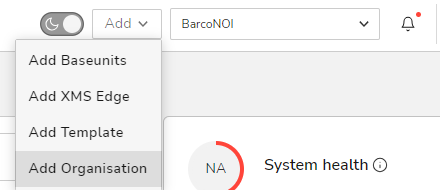
For detailed information, refer to the chapter Add organisation in XMS Cloud User guide available on Barco website. [See also].
Do not forget to give access to the organization account to your end customer. If not requested to fill in the information during the creation of the organization account, you can add the end customer as admin. For detailed instructions, refer to the chapter User management in XMS Cloud User guide available on Barco website.
Once you created the customer's organization account, make sure you select the right organization account to add the devices into. Once the device is added to the organization account, the SmartCare contract will be activated within 24 hours.
-
Customer has an existing XMS Cloud organization account
In case the customer already has an XMS Cloud organization account, he can add you as an admin into his account. For detailed instructions, refer to the chapter User management in XMS Cloud User guide available on Barco website.
Once you have admin rights to the customer's organization account, make sure you select the right organization account to add the devices into. Once the device is added to the organization account, the SmartCare contract will be activated within 24 hours.
Notes
For ClickShare Base Units running firmware version 2.17 or earlier: If this is not permitted or desired by the customer, you can simply write down the Device Token and provide it to the end customer. They can add the device to their account and activate the SmartCare contract for the device during the 1-year standard warranty of the device. The token remains valid up until then. Alternatively, the end customer can retrieve the Device Token from the web configurator of the device, as is explained here: location of token in the web configurator.
For ClickShare Base Units running firmware version 2.18 or later: Since ClickShare Base Unit firmware version 2.18, the ClickShare registration flow no longer uses a Device Token, for details see KB11432.

