4.2.4 Manage

Location and availability
Overview
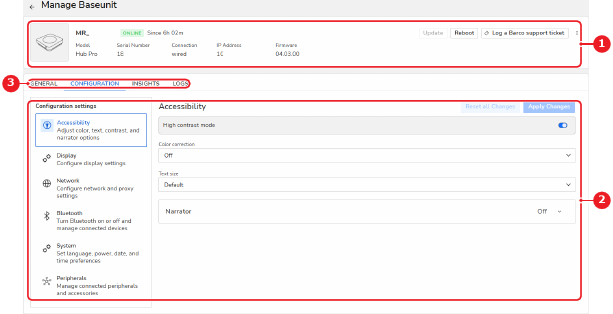
Image 4–5
1
Base Unit details
2
Pane area
3
Tab page area
Available device settings and information

For CS-100, CS-100 HUDDLY, CSE-200, CSE-200+ and CSE-800:

Tab pageMenuPaneExplanation / options
GENERAL Location

Shows the location this Base Unit is located at.

Click on the Change Location button to change the location using the location selector.

TemplateAssign a template. For more info, see “Edit and assign”.
Base Unit healthCheck the health of the Base Unit. For more info, see “Events”.
Screen view

Shows the information that is displayed on the screen the Base Unit device is connected to.

The wallpaper can be changed by hovering over the wallpaper image and clicking on the Change Wallpaper button.

Details

Shows the technical details of the Base Unit device.

  • Article number
  • MAC address
  • Hostname
  • SSID
  • Frequency
  • Channel
  • Timezone
  • Logging level
  • Button security
  • Energy mode
Scheduled jobs

Check which jobs are scheduled for the Base Unit.

Click the link icon to open the scheduler page. For more info, see “Scheduler”.

ClickShare Button

Shows the list of Button devices paired with the Base Unit, as well as the current status of the devices.

Click the link icon to open the Button page. For more info, see “Button”.

Peripherals

Shows the following info for all peripherals connected to the Base Unit:

  • Name of the peripheral
  • Status of the peripheral
  • Status of the peripheral components
  • Activity log
CONFIGURATIONPersonalisationOn-Screen ID

Settings to be displayed on the Screen:

  • Language for on-screen text
  • Meeting room name (hostname)

    The default name is “ClickShare-[serial number]”

  • Location name
  • Welcome message
  • Info toggles (on/off slider):

    • Show meeting room info
    • Show source names
    • Show network info
  • On-screen text size
Wallpaper

Hover over the wallpaper image and click on the Change Wallpaper button to set a new wallpaper.

Toggle the wallpaper on or off using the Show the wallpaper when no one is sharing their screen setting.

Display & AudioOutputs
  • Resolution or Display mode
  • HDMI Hot-Plug display detection (on/off slider)
  • Enable audio (on/off slider)
  • Audio output
  • All available output settings

    • Enable (on/off slider)
    • Resolution
    • ClickShare Position
  • Screensaver timer setting
Inputs

All available input settings

  • Enable (on/off slider)
  • Source Name
WiFi & networkWiFi SettingsAll Wi-Fi settings including the WebUI available via Wi-Fi toggle (on/off slider).
LAN Settings
  • LAN Hostname settings
  • All LAN settings for each interface.
Services
  • Mobile Base Unit:

    • ClickShare App (on/off slider)
    • AirPlay (on/off slider)
    • Google Cast (on/off slider)
    • Passcode type
  • SNMP:

    • Enable (on/off slider)
    • Engine ID
    • Use default Engine ID (on/off slider)
    • SNMP Manager
    • Username
    • Password
  • Remote Button Pairing (on/off slider)
Proxy SettingsUse a proxy server (on/off slider) + details if enabled
SecuritySecurity LevelSecurity level picker (level 1–3)
SystemEnergy Savers
  • Standby timer
  • Standby type

    • ECO mode
    • Deep standby
BlackboardAllow saving to USB (on/off slider)
ButtonSelect where the Button devices must connect to (+ additional settings if applicable)
Digital Signage[1]Digital Signage appsChosen Digital Signage mode
INSIGHTS Total usage of Base UnitGraph showing the total usage and sharing by month
Average usage of Base Unit over timeGraph showing the average usage and sharing by a selected time period (a week by default)
LOGS  User logs

For C-5, C-10, CX-20, CX-30, CX-50, C-5 Gen2, C-10 Gen2, CX-20 Gen2, CX-30 Gen2, CX-M, CX-50 Gen2, CB Core and CB Pro:

Tab pageMenuPaneExplanation / options
GENERAL Location

Shows the location this Base Unit is located at.

Click on the Change Location button to change the location using the location selector.

TemplateAssign a template. For more info, see “Edit and assign”.
Barco SmartCare

Shows the warranty status of the Base Unit.

Click the refresh icon to update the warranty status.

Base Unit healthCheck the health of the Base Unit. For more info, see “Events”.
Screen view

Shows the information that is displayed on the screen the Base Unit device is connected to.

The wallpaper can be changed by hovering over the wallpaper image and clicking on the Change Wallpaper button.

Details

Shows the technical details of the Base Unit device.

  • Article number
  • MAC address
  • Hostname
  • SSID
  • Frequency
  • Channel
  • Timezone
  • Logging level
  • Button security
  • Energy mode
Scheduled jobs

Check which jobs are scheduled for the Base Unit.

Click the link icon to open the scheduler page. For more info, see “Scheduler”.

ClickShare Button

Shows the list of Button devices paired with the Base Unit, as well as the current status of the devices.

Click the link icon to open the Button page. For more info, see “Button”.

Peripherals

Shows the following info for all peripherals connected to the Base Unit:

  • Name of the peripheral
  • Status of the peripheral
  • Status of the peripheral components
  • Activity log
CONFIGURATIONPersonalisationOn-Screen ID

Settings to be displayed on the Screen:

  • Type of On-Screen ID
  • Language for on-screen text
  • Meeting room name (hostname)

    The default name is “ClickShare-[serial number]”

  • Location name
  • Welcome message
  • Info toggles (on/off slider):

    • Show network info
    • Enable theater mode
Wallpaper

Hover over the wallpaper image and click on the Change Wallpaper button to set a new wallpaper.

Toggle the wallpaper on or off using the Show the wallpaper when no one is sharing their screen setting.

Display & AudioOutputs
  • All available output settings

    • Model & Vendor (of connected display)
    • Enable (on/off slider)
    • Resolution
    • ClickShare Position
  • Display mode
  • Enable CEC (on/off slider)
  • Enable audio (on/off slider)
  • Audio output
  • Screensaver

    • Timer
    • Content source
Inputs

All available input settings

  • Input Mode
  • Source Name
Peripherals[2]
  • Enable (on/off slider)
  • Room System type
Conference bar[3]Camera

Default View Angle for Conference Bar:

  • Group Framing
  • Speaker Framing
  • Composite Framing
  • Fixed position
Video
  • Brightness
  • Contrast
  • Saturation
  • Gamma
  • White Balance

    Auto (on/off slider) lets the Base Unit adjust the white balance automatically.

  • Exposure

    Auto (on/off slider) lets the Base Unit adjust the exposure automatically.

Anti flickerPower line frequency
WiFi & networkWiFi Settings
  • All Wi-Fi settings including the WebUI available via Wi-Fi toggle (on/off slider).
  • Wireless client Settings (Operation Mode and pre-configure buttons)
LAN Settings (Read-only)
  • LAN Hostname settings
  • All LAN settings for each interface.
Services
  • Mobile Base Unit:

    • ClickShare App (on/off slider)
    • AirPlay (on/off slider)
    • Google Cast (on/off slider)
    • Miracast (on/off slider)
    • Passcode type
    • Enable Local View (on/off slider)
  • SNMP:

    • Enable (on/off slider)
    • Engine ID
    • Use default Engine ID (on/off slider)
    • SNMP Manager
    • Username
    • Password
  • PresentSense

    • Enable (on/off slider)
    • Signal Strength
Proxy SettingsUse a proxy server (on/off slider) + details if enabled
SecuritySecurity LevelSecurity level picker (level 1–3)
SystemEnergy Savers
  • Standby timer
  • Standby type

    • ECO mode
    • Deep standby
Blackboard
  • Enable (on/off slider)
  • Allow saving to USB (on/off slider)
Date & Time
  • Timezone
  • Time Format

    • 12–hr
    • 24–hr
  • Use NTP servers (on/off slider) + details if enabled
Button
  • USB identification of Button as separate or as tied to meeting room
  • Select where the Button devices must connect to (+ additional settings if applicable)
Support & UpdatesLoggingEnable debug logging (on/off slider)
Automatic Firmware Updates

How a newer update must be handled:

  • Automatic
  • Notify
  • Off
Digital Signage[4]Digital Signage appsChosen Digital Signage mode
INSIGHTS Total usage of Base UnitGraph showing the total usage and sharing by a selected time period (week by default)
Average usage of Base Unit over timeGraph showing the average usage and sharing by a selected time period (week by default)
Total usage of Base Unit per MonthGraph showing the total usage and sharing by month
LOGS  User logs

For Hub Core and Hub Pro:

Tab pageMenuPaneExplanation / options
GENERAL Location

Shows the location this Base Unit is located at.

Click on the Change Location button to change the location using the location selector.

TemplateAssign a template. For more info, see “Edit and assign”.
Barco Warranty

Shows the warranty status of the Base Unit.

Click the refresh icon to update the warranty status.

Base Unit healthCheck the health of the Base Unit. For more info, see “Events”.
Details

Shows the technical details of the Base Unit device.

  • Article number
  • MAC address
  • SSID
  • Frequency
  • Channel
  • Timezone
  • Energy mode
Scheduled jobs

Check which jobs are scheduled for the Base Unit.

Click the link icon to open the scheduler page. For more info, see “Scheduler”.

ClickShare Button

Shows the list of Button devices paired with the Base Unit, as well as the current status of the devices.

Click the link icon to open the Button page. For more info, see “Button”.

Control Panel

Shows the list of Control Panel devices connected to the Base Unit, as well as the current status of the devices.

Click the link icon to open the Control Panel page. For more info, see “Control Panel”.

Peripherals

Shows the following info for all peripherals connected to the Base Unit:

  • Name of the peripheral
  • Status of the peripheral
  • Status of the peripheral components
  • Activity log
CONFIGURATION[5]AccessibilityHigh contrast mode

Toggle on or off.

Additional information about the setting can be found in the installation manual.

Color correction

Changes the colors on all connect screens.

  • Off
  • Deuteranomaly (Red-green)
  • Protanomaly (Red-green)
  • Tritanomaly (Blue-yellow)

Additional information about the setting can be found in the installation manual.

Text size

Changes the font size of all text and icons.

  • Small
  • Default
  • Large
  • Largest

Additional information about the setting can be found in the installation manual.

Narrator

Toggle the narrator on or off.

Additional information about the setting can be found in the installation manual.

DisplayCEC

Toggle on or off.

Additional information about the setting can be found in the installation manual.

Connected display resolution

Manage the resolution of all connected displays.

Additional information about the setting can be found in the installation manual.

NetworkEthernet network status
  • IP setting

    • Static (Manually configure a fixed IP address)
    • DHCP (Automatically assing an IP address from the network)
  • All LAN settings.

Additional information about the setting can be found in the installation manual.

LAN proxy server
  • Enabled (on/off slider)
  • Server address
  • Server port (optional)
  • Test Connection

Additional information about the setting can be found in the installation manual.

Access point settings
  • Access point settings (on/off slider)
  • All access point settings.

Additional information about the setting can be found in the installation manual.

BluetoothUse Bluetooth

Toggle Bluetooth on or off.

Additional information about the setting can be found in the installation manual.

Device name

Bluetooth name for the Base Unit.

Additional information about the setting can be found in the installation manual.

Bluetooth address (Read-only)MAC Address of the Base Unit Bluetooth chip.
SystemLanguage

Language and region selection for the Base Unit.

Additional information about the setting can be found in the installation manual.

Date and time
  • Time zone

    Additional information about the setting can be found in the installation manual.

  • 24-hour time format (on/off slider)

    Additional information about the setting can be found in the installation manual.

  • Use NTP servers (on/off slider)
  • NTP server

    Additional information about the previous two settings can be found in the installation manual.

Energy saver
  • Enable (on/off slider)
  • Energy saver mode

    • Eco
    • Deep sleep

Additional information about the setting can be found in the installation manual.

Firmware update

Automatic update toggle.

Additional information about the setting can be found in the installation manual.

PeripheralsOrientation

Control Panel orientation mode.

Additional information about the setting can be found in the installation manual.

Brightness

Control Panel brightness slider.

Additional information about the setting can be found in the installation manual.

INSIGHTS Total usage of Base UnitGraph showing the total usage and sharing by a selected time period (week by default)
Average usage of Base Unit over timeGraph showing the average usage and sharing by a selected time period (week by default)
Total usage of Base Unit per MonthGraph showing the total usage and sharing by month
LOGS  User logs

[1] Only available if plug-in is installed

[2] Only for CX-50 Gen2 in a room system

[3] Only for the CB Core and CB Pro

[4] Only available if plug-in is installed

[5] Changes done in XMS Cloud are synced to the Base Unit within a few seconds.